

身為一個教學文,當然不可以只有開箱
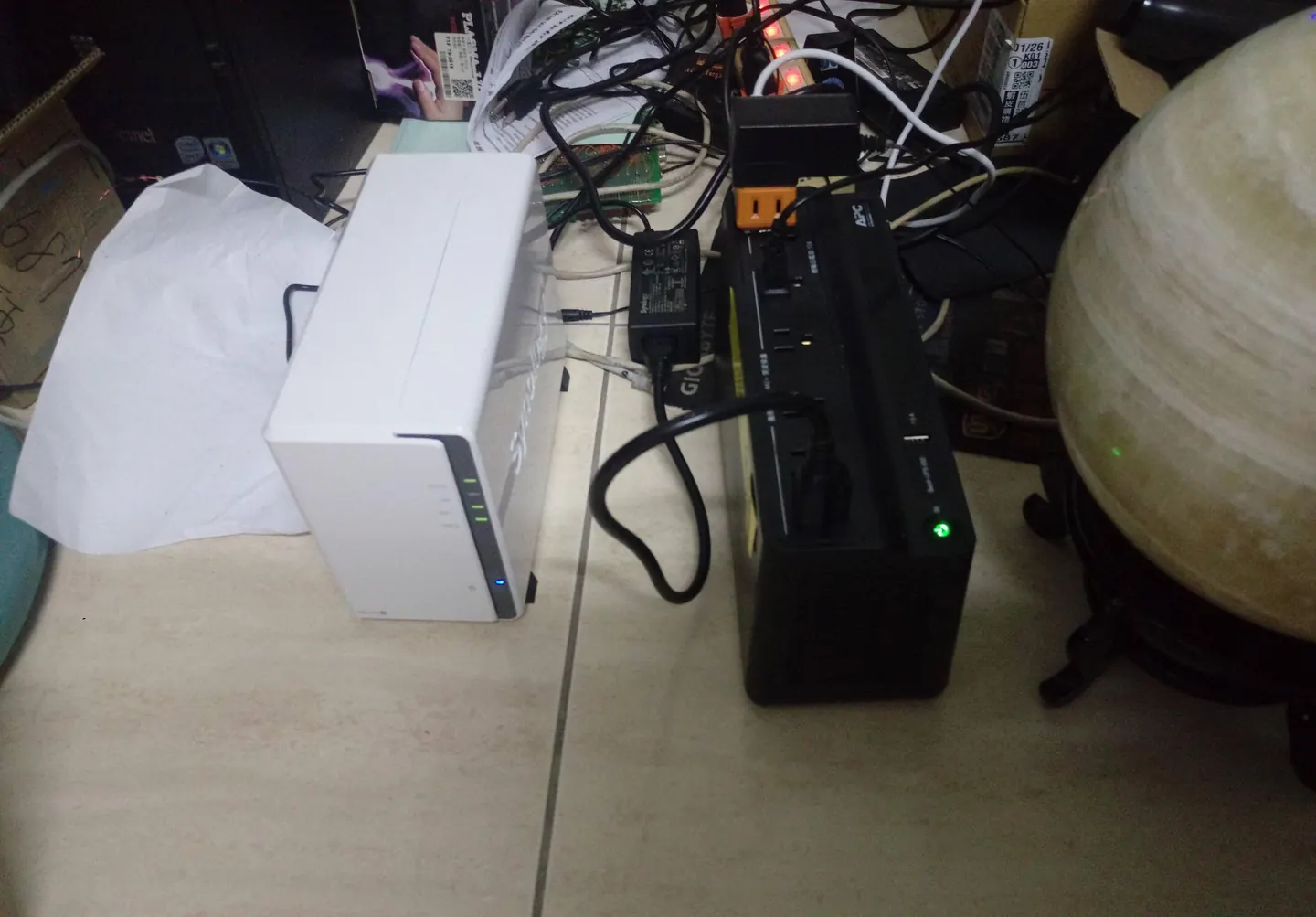
一堆東西都不支援,買個 apc ups 網路介面卡,要一萬多(黑人問號???
我買了的型號太舊還沒網路孔??????,幸好還有一個usb 串列孔 乾脆來用上次開箱的ai 板子 直接寫一個 ups 控制器嘿嘿
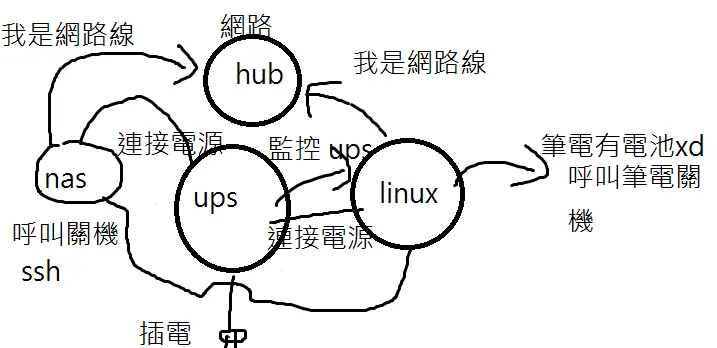
流程圖 (小畫家 甲級
安裝 nut ups tool
x213212@x213212-desktop:~$ sudo apt-get install nut-server nut-client nut-monitor s-nail
基礎設定
x213212@x213212-desktop:/etc/nut$ lsusb Bus 002 Device 002: ID 0bda:0411 Realtek Semiconductor Corp. Bus 002 Device 001: ID 1d6b:0003 Linux Foundation 3.0 root hub Bus 001 Device 003: ID 8087:0a2b Intel Corp. Bus 001 Device 006: ID 3938:1034 Bus 001 Device 005: ID 04d9:0161 Holtek Semiconductor, Inc. Bus 001 Device 004: ID 0eef:0005 D-WAV Scientific Co., Ltd

一定要設置 你的 usb “bus” 和 “device” 如上 確定抓到 American Power Conversion Uninterruptible Power Bus 001 Device 007: ID 051d:0002 American Power Conversion Uninterruptible Power Bus 001 Device 002: ID 0bda:5411 Realtek Semiconductor Corp. Bus 001 Device 001: ID 1d6b:0002 Linux Foundation 2.0 root hub once try these things, You can use lsusb to find out the bus and device number Then change permission to the device chmod 0666 /dev/bus/usb/[bus number]/[device number] as for details go with rouble starting Network UPS Tools with a Eaton 3S UPS share improve this answer 設定完
系統配置
x213212@x213212-desktop:/etc/nut$ sudo upsc mge 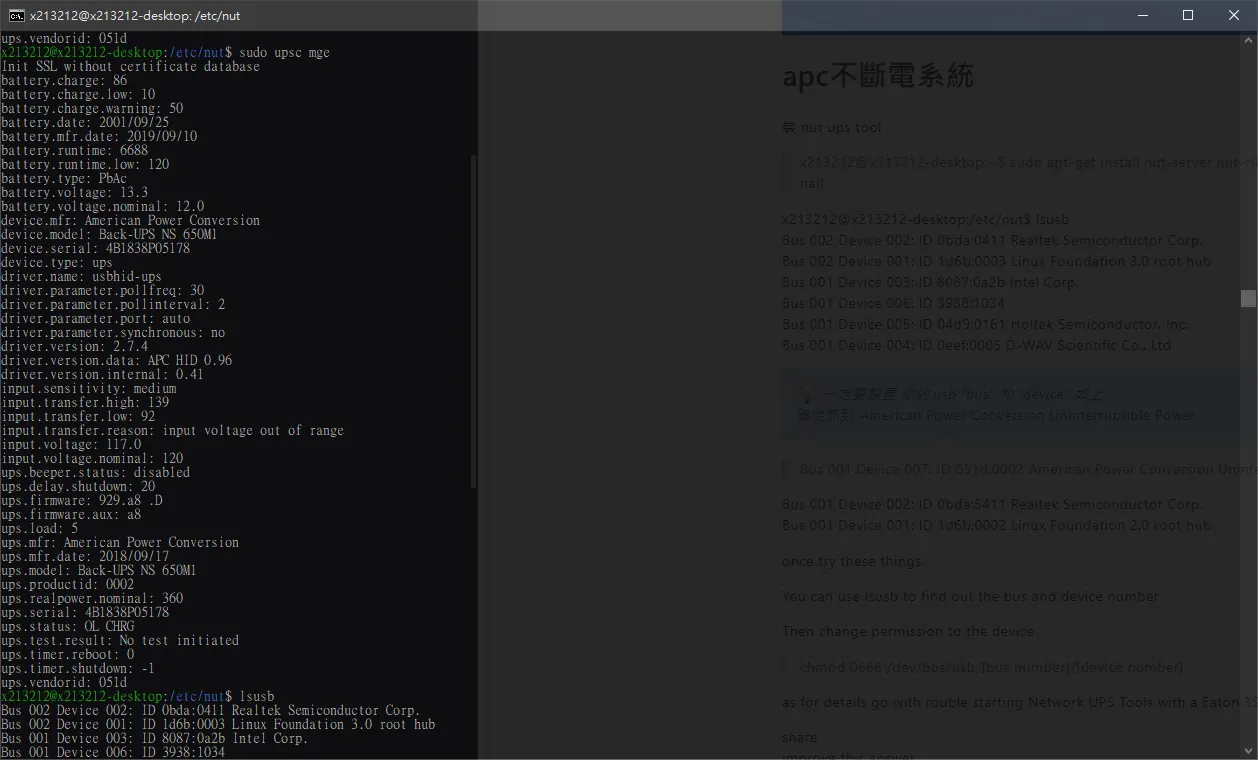 就可以順利看到我們的ups 內容囉~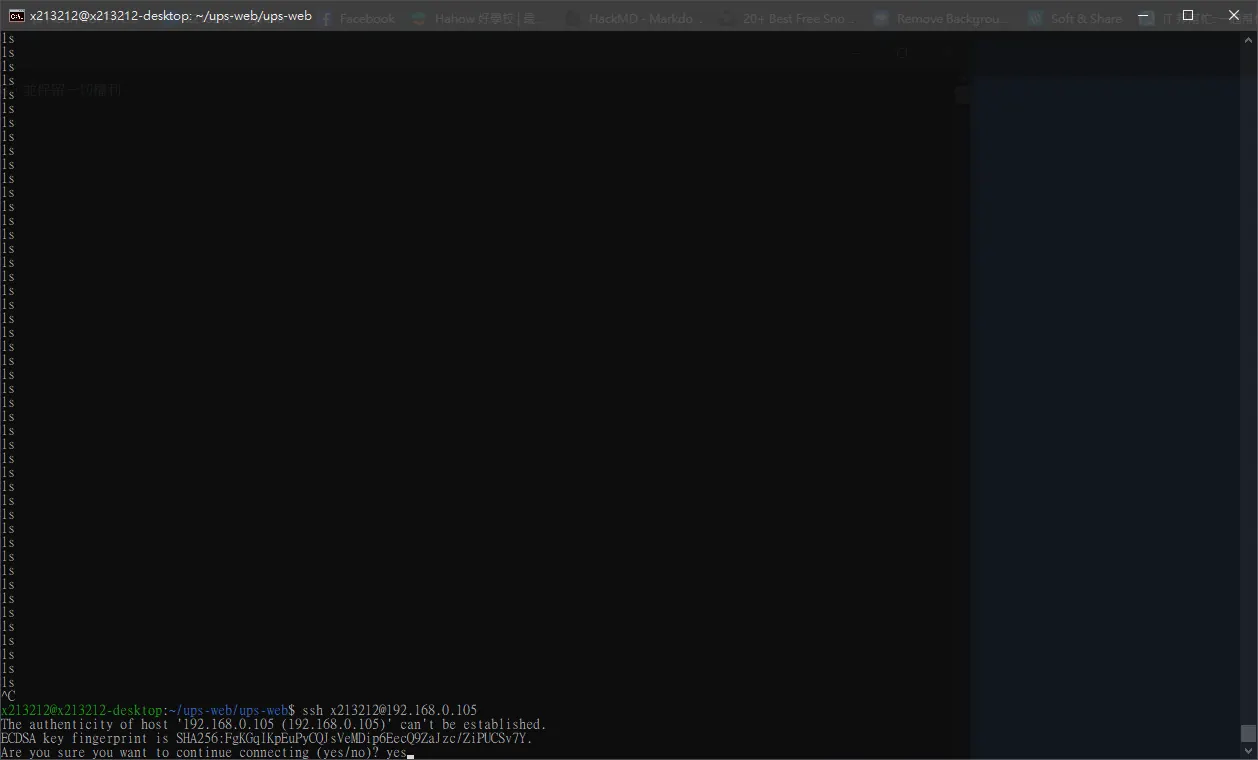
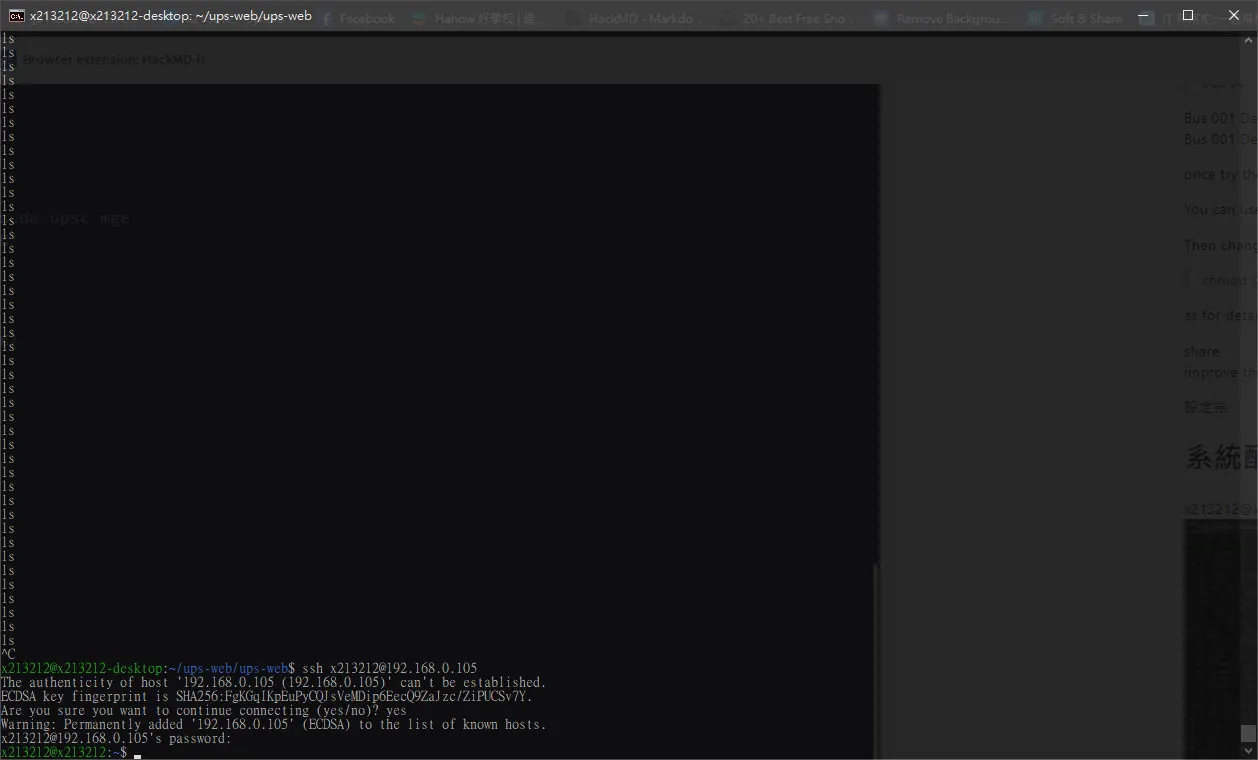
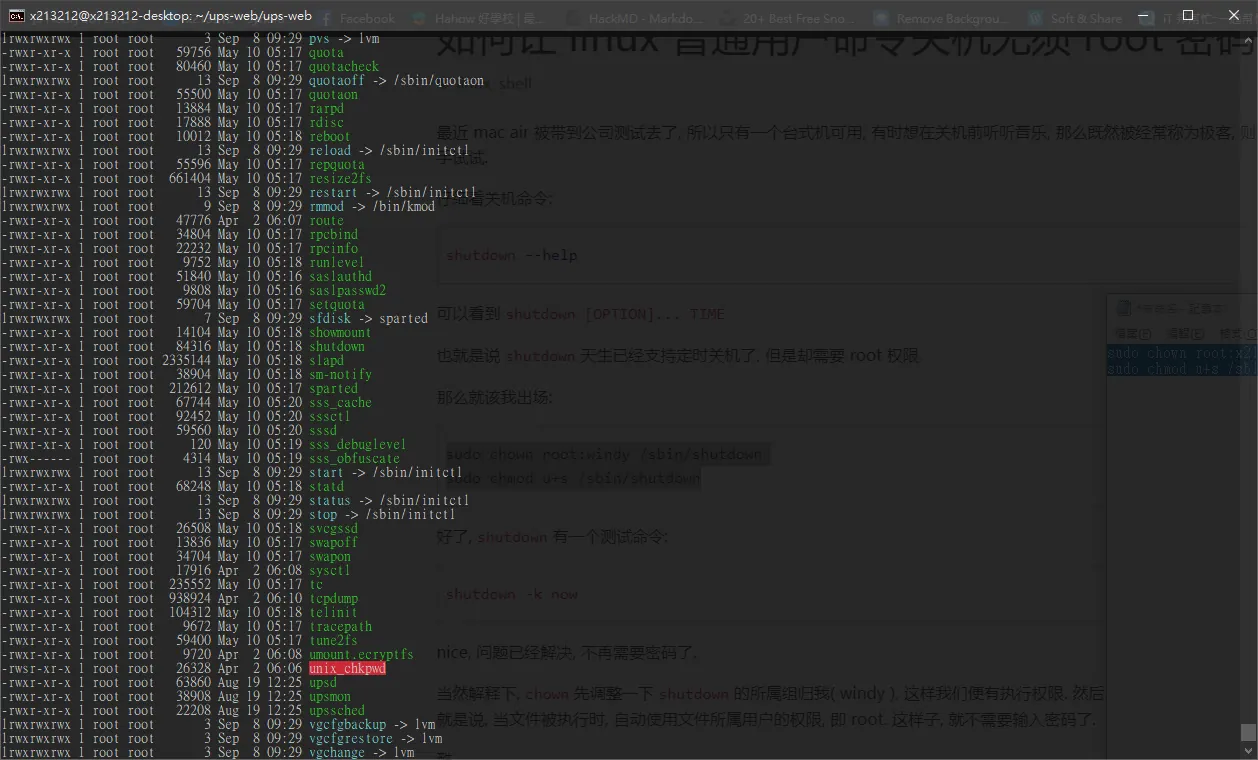 https://www.vediotalk.com/?p=2211 跟著設權限
 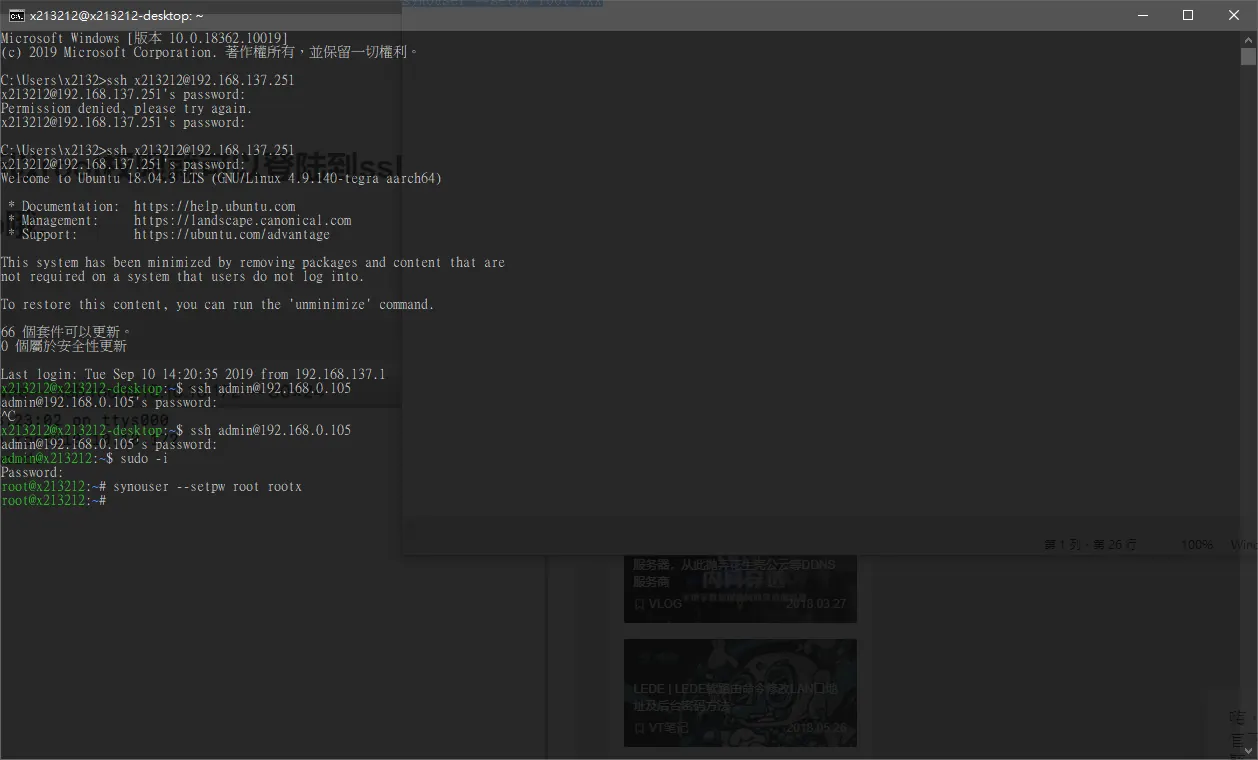 有囉~
有囉~ 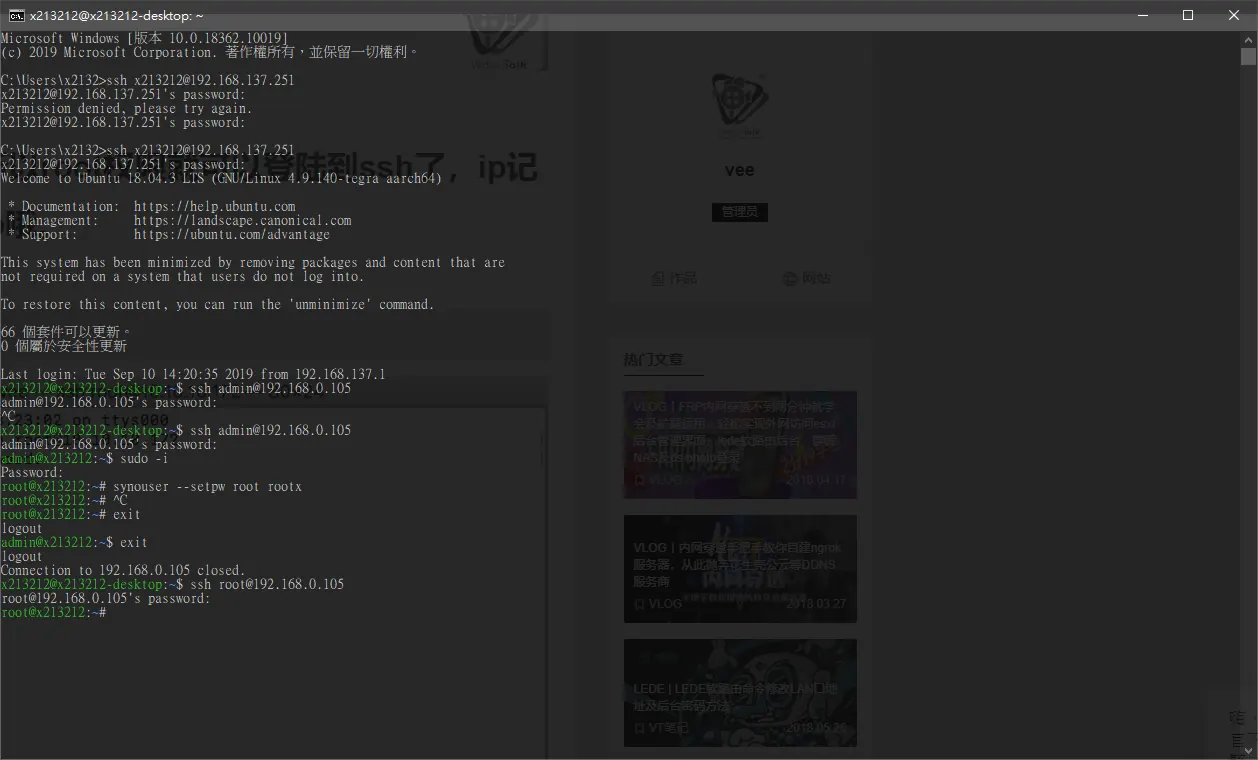 安裝 sshpass
 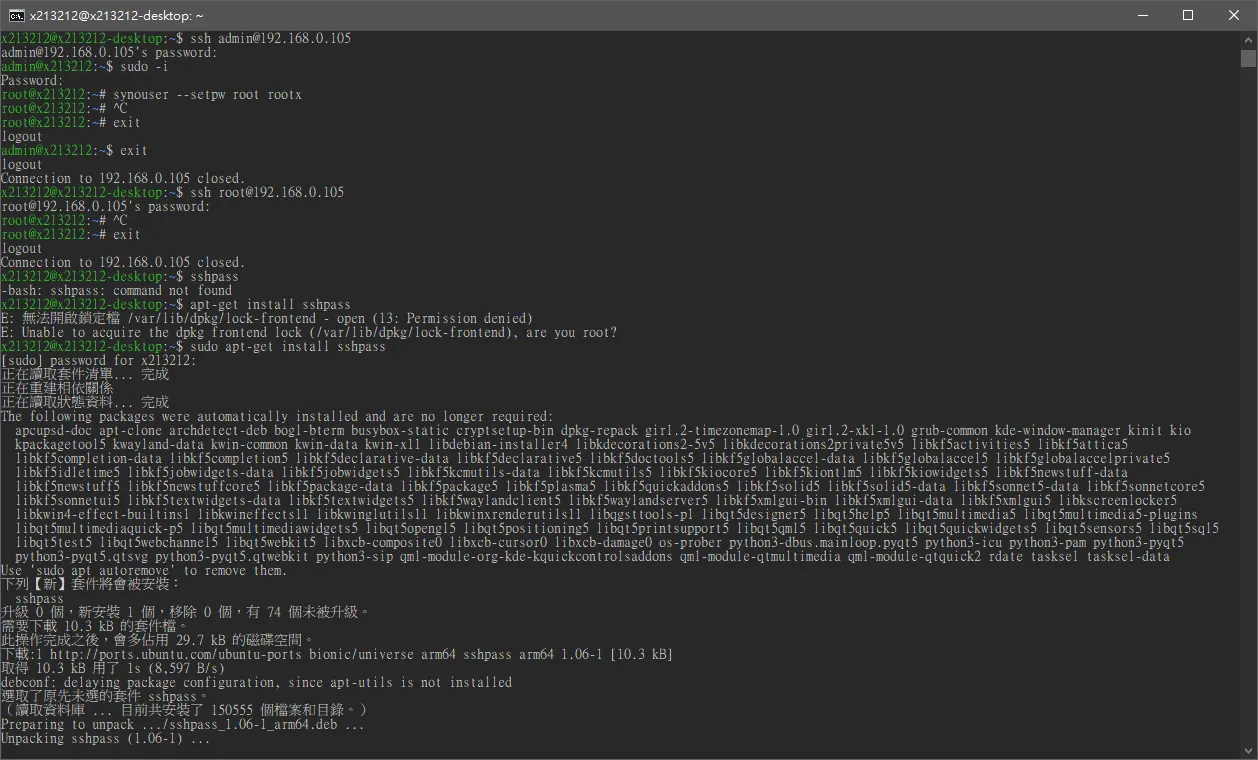 開始寫小東西 apt-get install sshpass sshpass -p rootx root@192.168.0.105 那個我們只要跟著下 sshpass -p rootx ssh root@192.168.0.105 'shutdown -h now’ 我們的nas就關機囉 那我們在 我們上次的ubuntu 來寫script吧~
 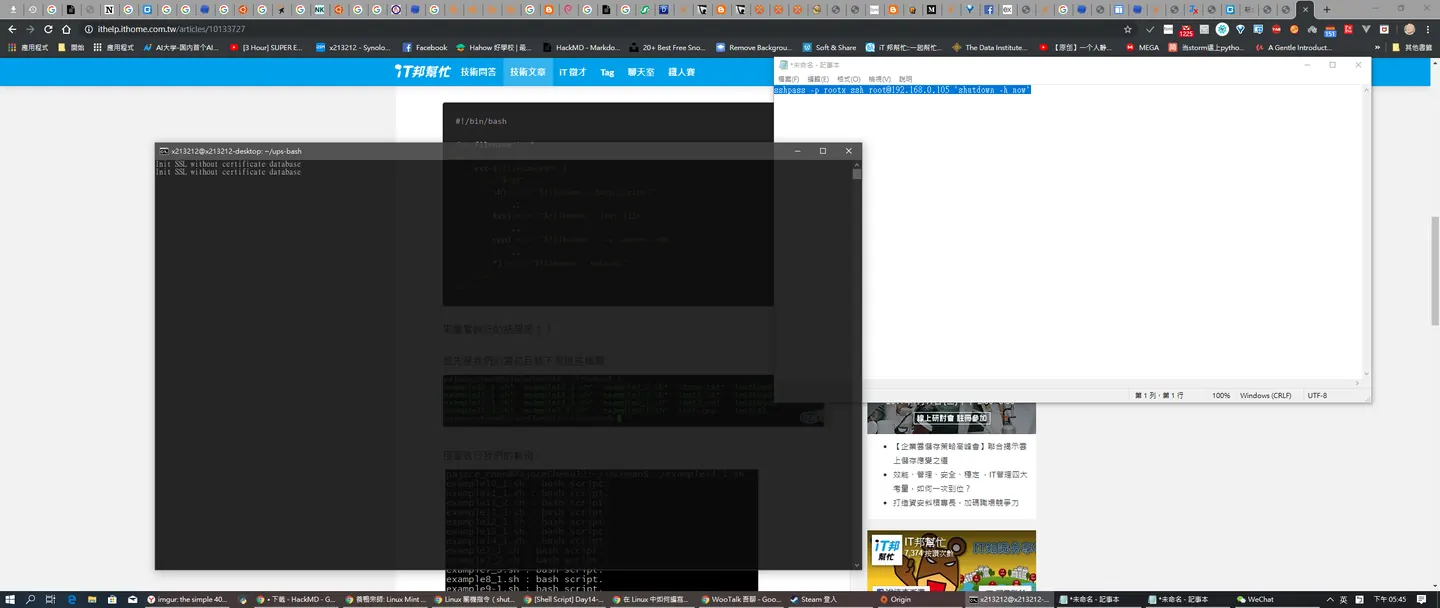 簡單nut ups tool 設置什麼好亂 乾脆自己來xd寫 script
while : do clear sleep 1 TAROUTPUT=$( upsc mge | grep -E "ups.status") TAROUTPUT2=$( upsc mge | grep -E "battery") substr=$( echo ${TAROUTPUT/ups.status: /""}) # echo $substr # if [ $substr == "OL" or $substr == "OL CHRG"]; then # echo "good" # else # echo "bad" #fi case "$substr" in "OL CHRG") echo "充電中" ;; "OL") echo "已經完全充滿" ;; *) echo "已經拔除電源,通知系統關機。" sshpass -p rootx ssh root@192.168.0.105 'shutdown -h now' break; esac # echo $substr # echo $TAROUTPUT # echo "\n" # echo $TAROUTPUT2 done
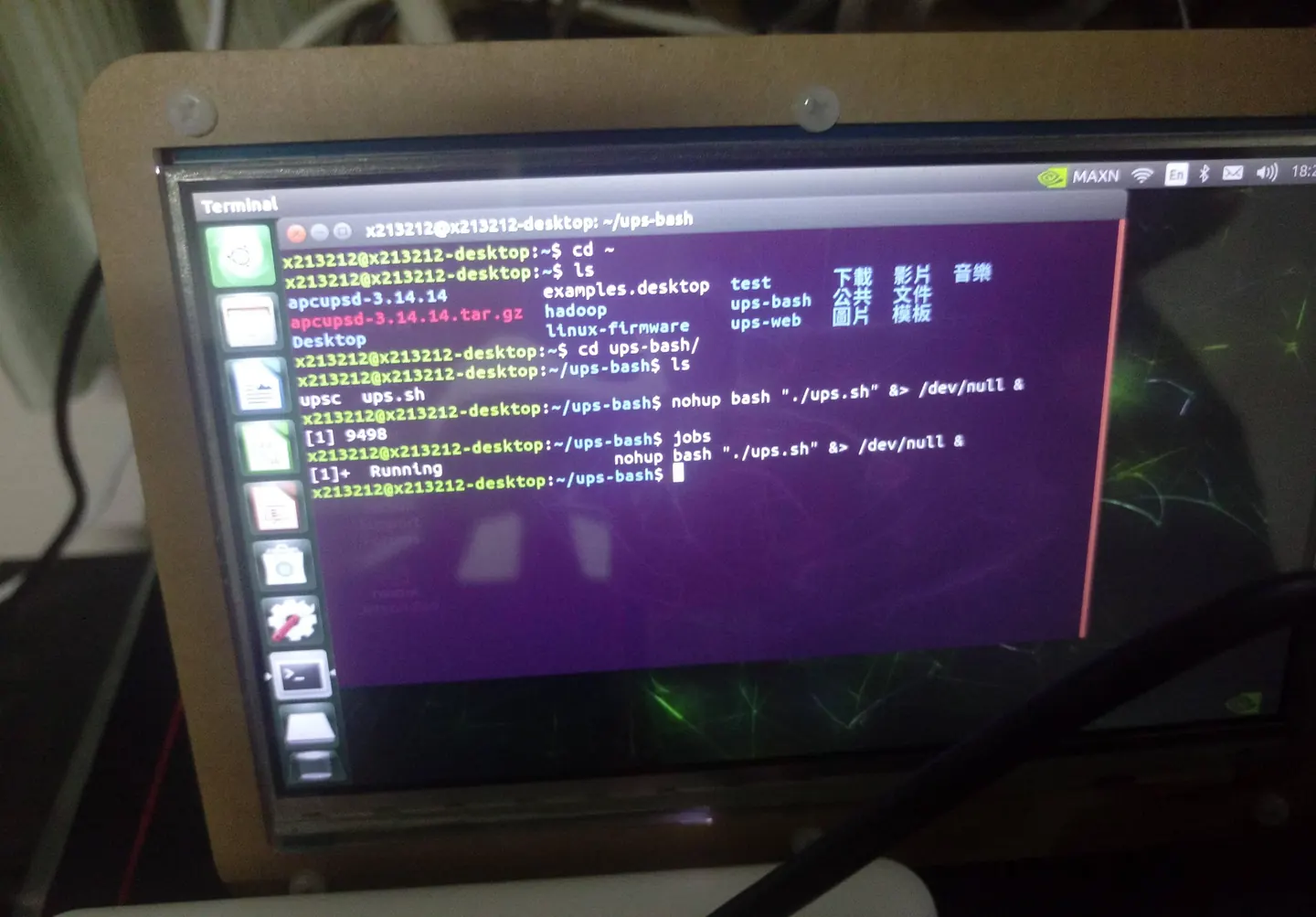
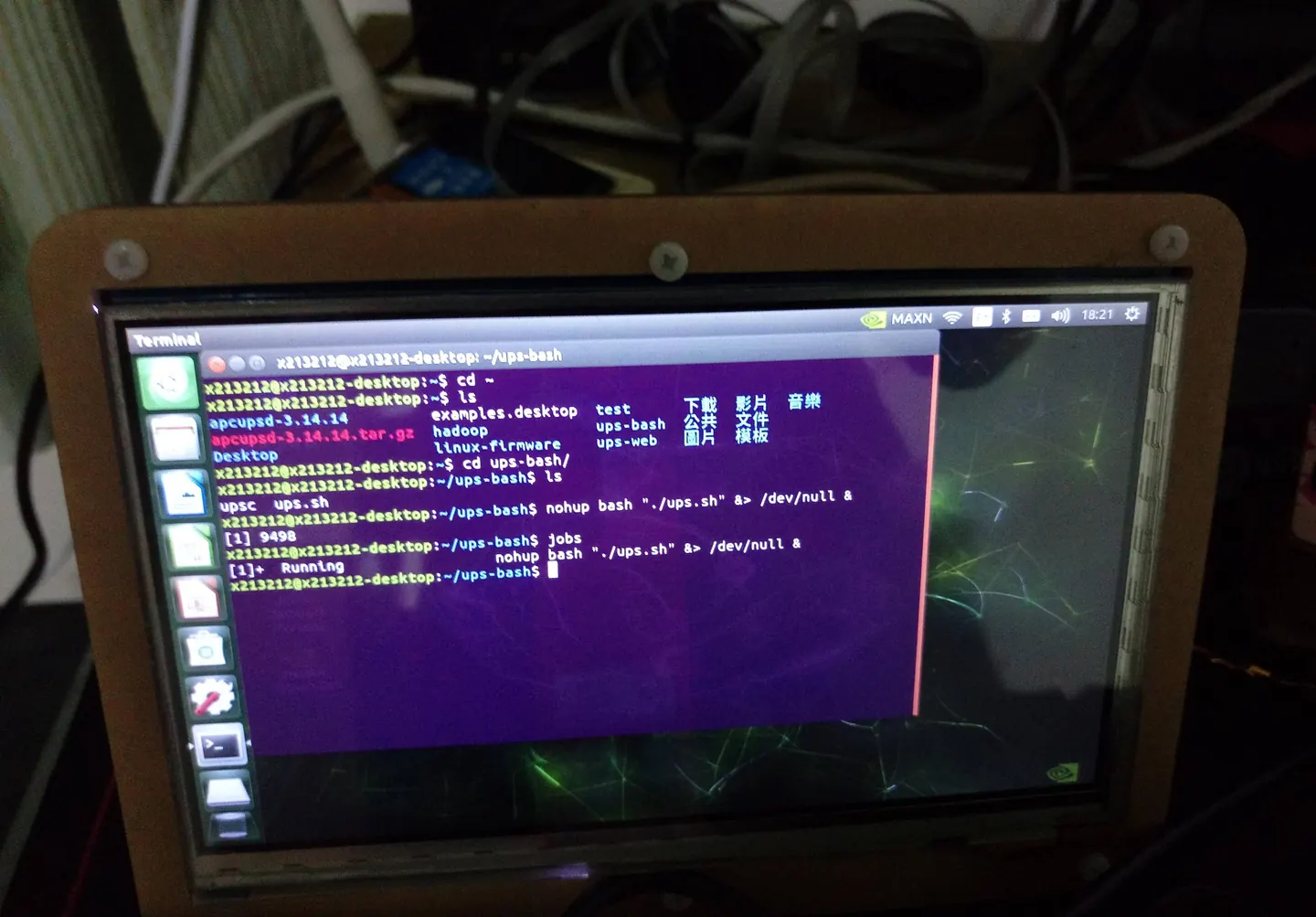
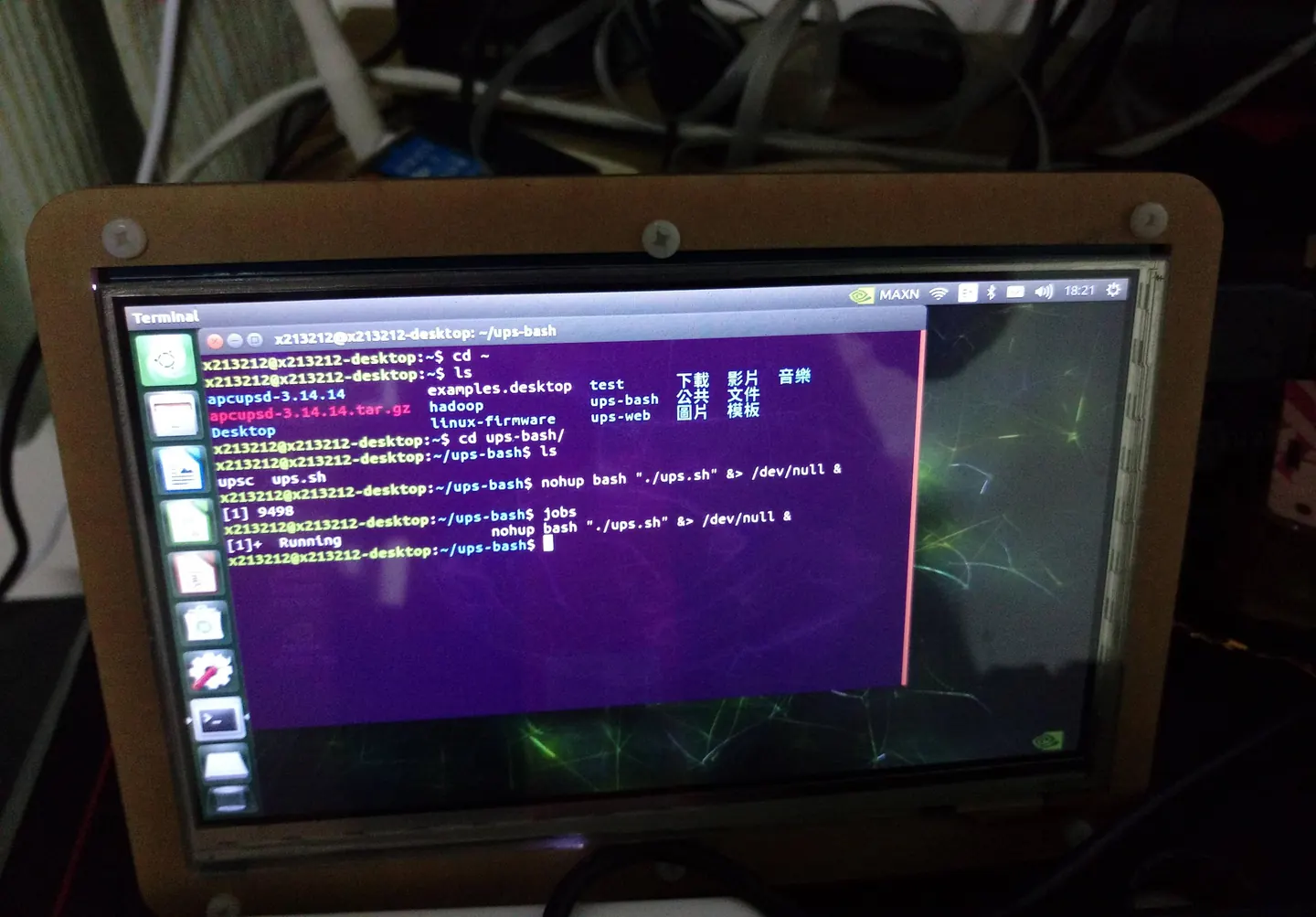
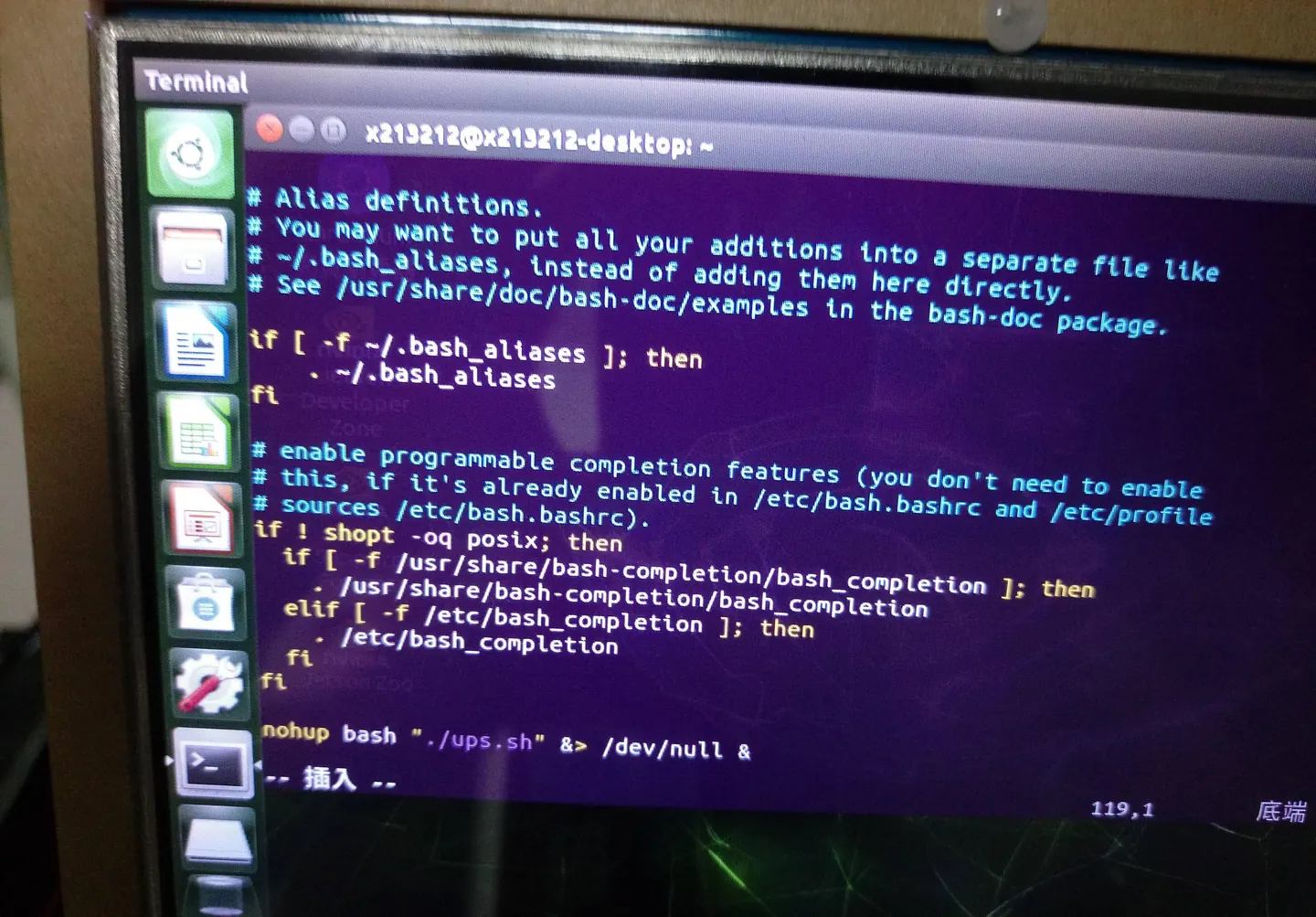 背景執行 nohup bash ups.sh &> /dev/null & jobs 可以看到運行中的 任務 這樣 斷電的時候我的 nas 就可以自動關機囉~ 立馬省一萬 oops 我要換密碼 不然有心人士要登入我帳號了,不用擔心 群輝 nas 有用 google authenticator 應該是蠻安全的 (?
Comments