



我想大概某個大神說的,nginx 雖然有 負載平衡機制,在yahoo 公司內部也有用openresty 編寫模組的經驗 看來應付其他功能一些功能也相當彈性,但是假設要讀到db,可以再加設
一層 redis 也就是之前前輩所說的叫我不要接的爛攤子xd,如果經由負載平衡的話可以
在經過 redis 請求有資料就返回,沒資料的話就就跟數據庫要一份,然後緩存在 redis
這樣的話可以 再經由 lru 的演算法,自動刪除非常用資料庫 我想可以向其他大牛一樣大幅增加吞吐量? 說是寫文章到不如說是 把一堆關鍵字依分類全部丟在同一份文章裡,我們繼續看下去XD
參考
https://moonbingbing.gitbooks.io/openresty-best-practices/content/openresty/install_on_centos.html
centos install openresty
sudo yum-config-manager --add-repo https://openresty.org/yum/cn/centos/OpenResty.repo sudo yum install openresty yum install readline-devel pcre-devel openssl-devel perl
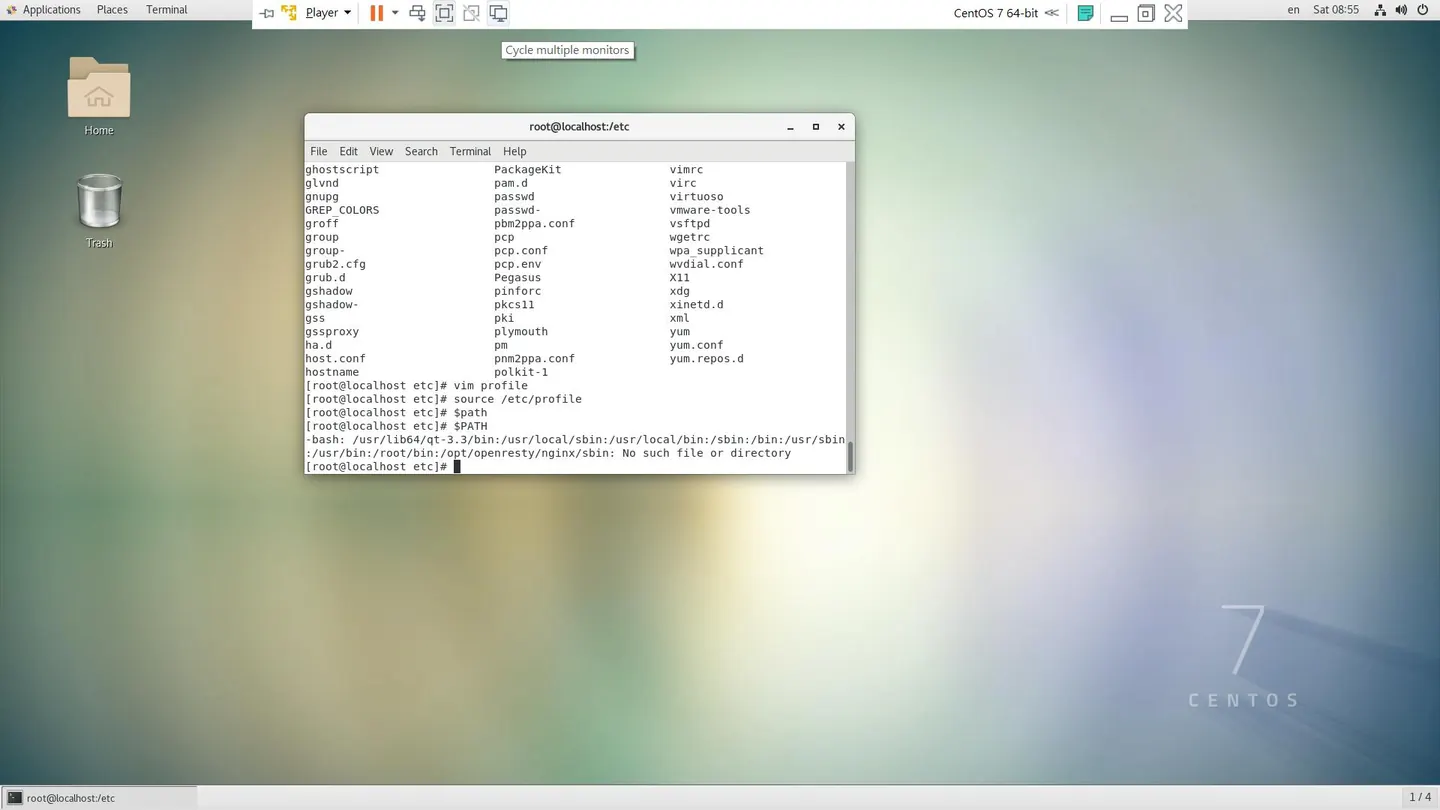
原來改名字了叫做 在 ubuntu 裡面要切換到 nginx… 下指令現在要改成 openresty … 來下指令 所以下在只要下換成openresty 就可了
設置靜態地址
[root@localhost etc]# cd sysconfigg -bash: cd: sysconfigg: No such file or directory [root@localhost etc]# cd sysconfig [root@localhost sysconfig]# cd network-scripts/ [root@localhost network-scripts]# ls -all
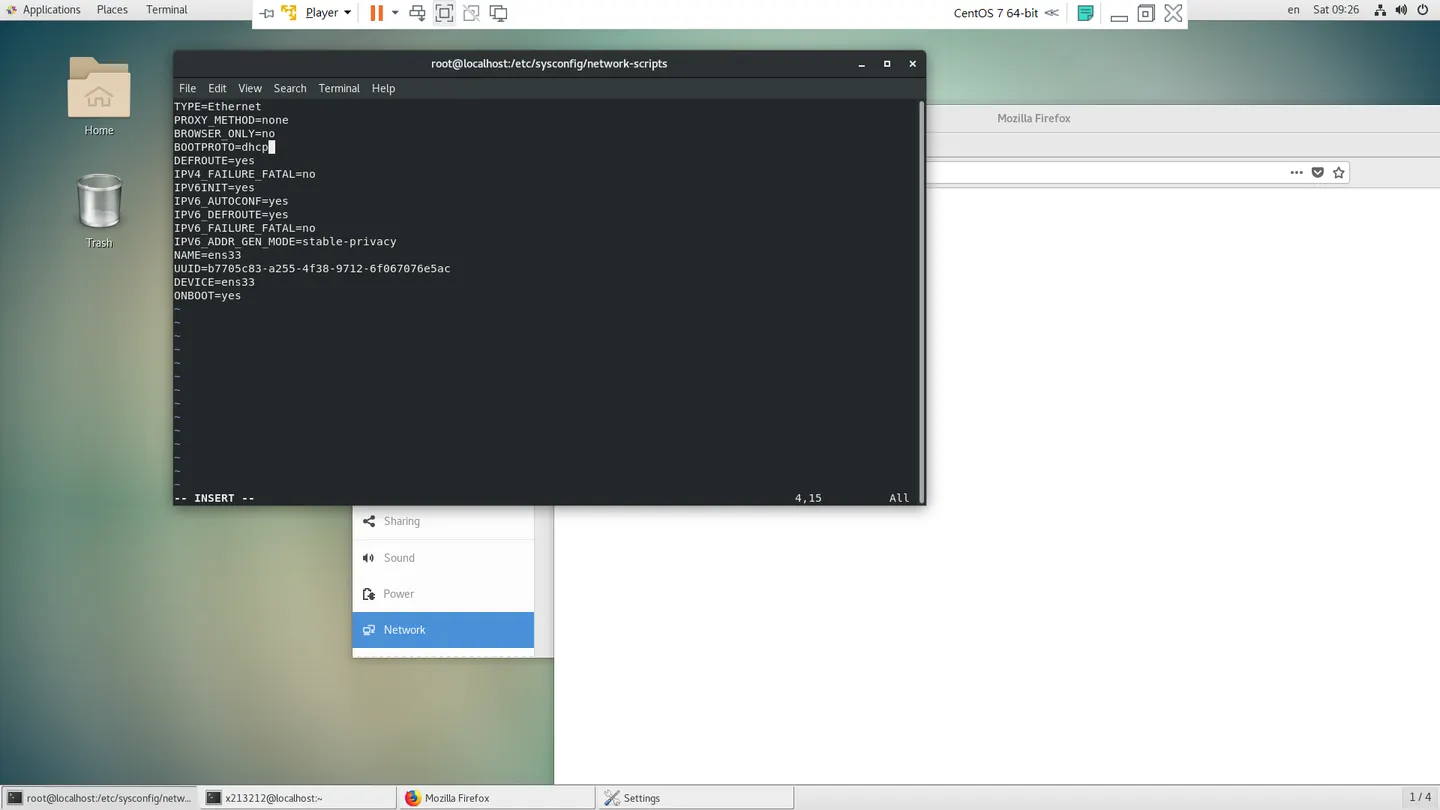
改成動態的
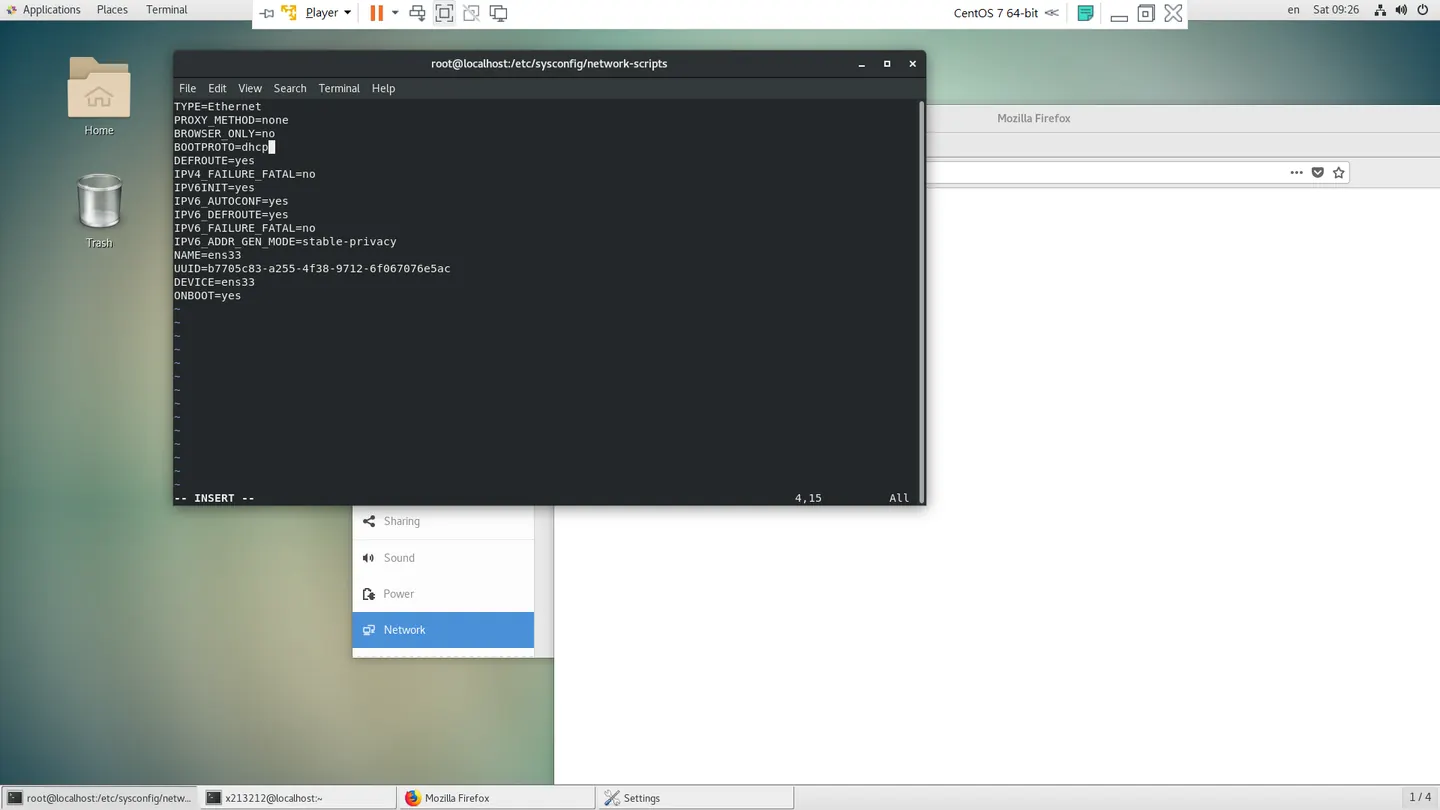
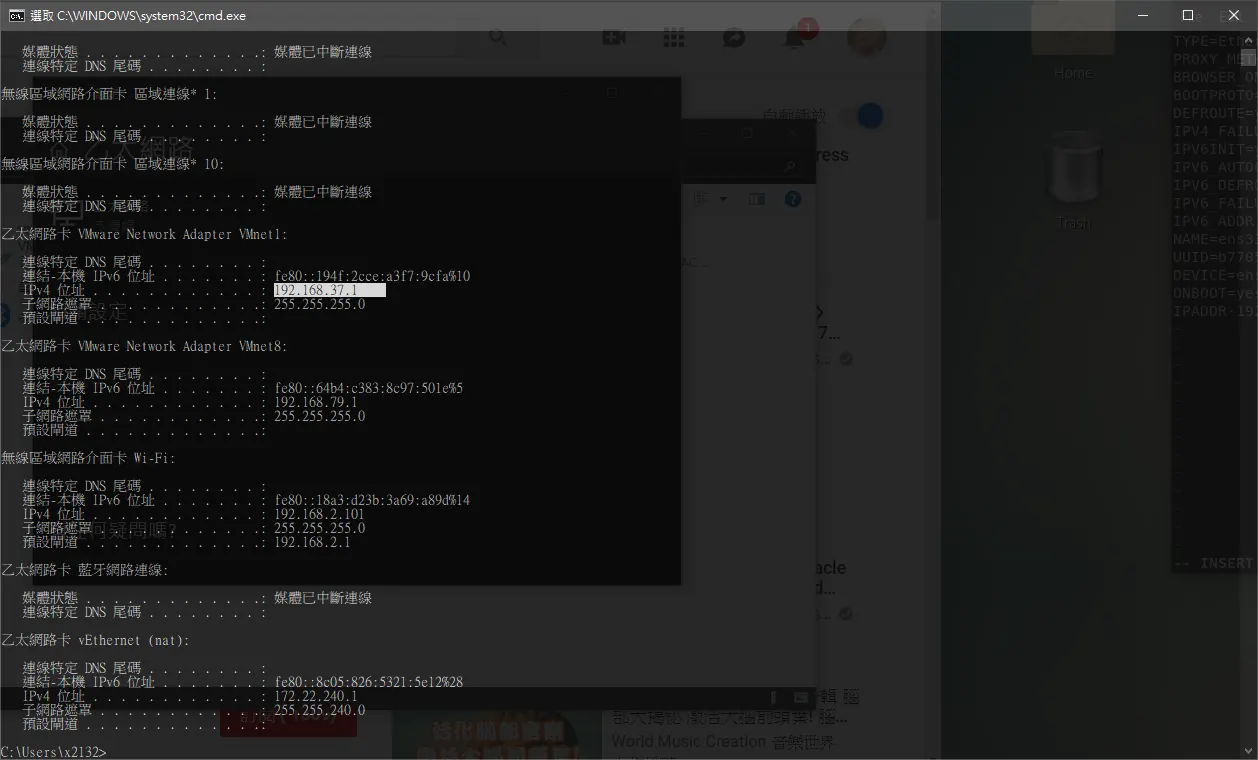
IPADDR=192.168.37.11 NETMASK=255.255.255.0 NM_CONTROLLED=no [root@localhost network-scripts]# systemctl stop network.service [root@localhost network-scripts]# systemctl start network.service 套句大學老師說的沒消息就是好消息
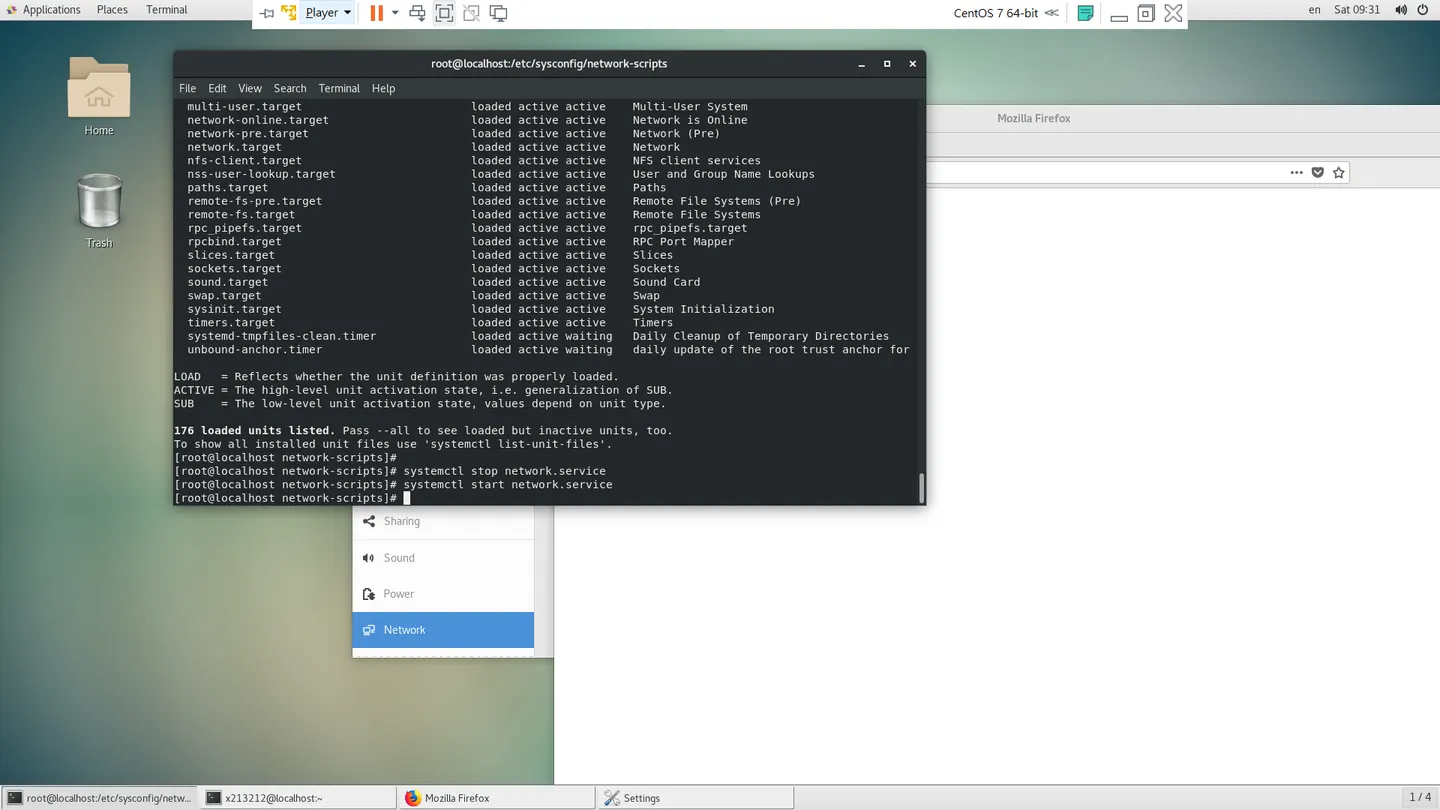
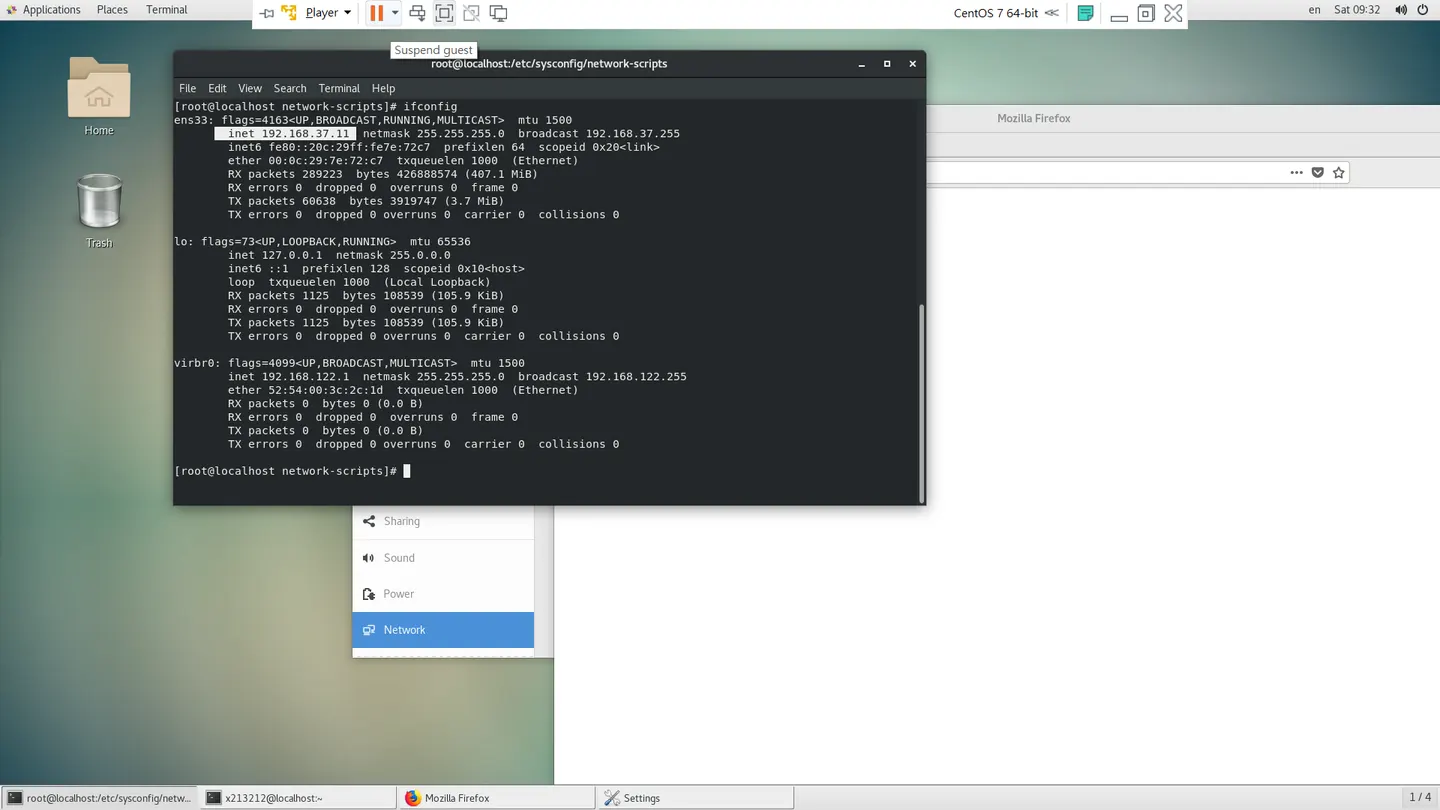
可以看到我們這邊已經設為靜態地址 我們來ping 看看 [root@localhost network-scripts]# vim ifcfg-ens33 [root@localhost network-scripts]# systemctl stop network.service [root@localhost network-scripts]# systemctl start network.service [root@localhost network-scripts]# linux ping 外網行得通, windows ping vm 怎麼不行? 在這邊除了這邊必須要查看,只需要設置為同網段就ping 的到了
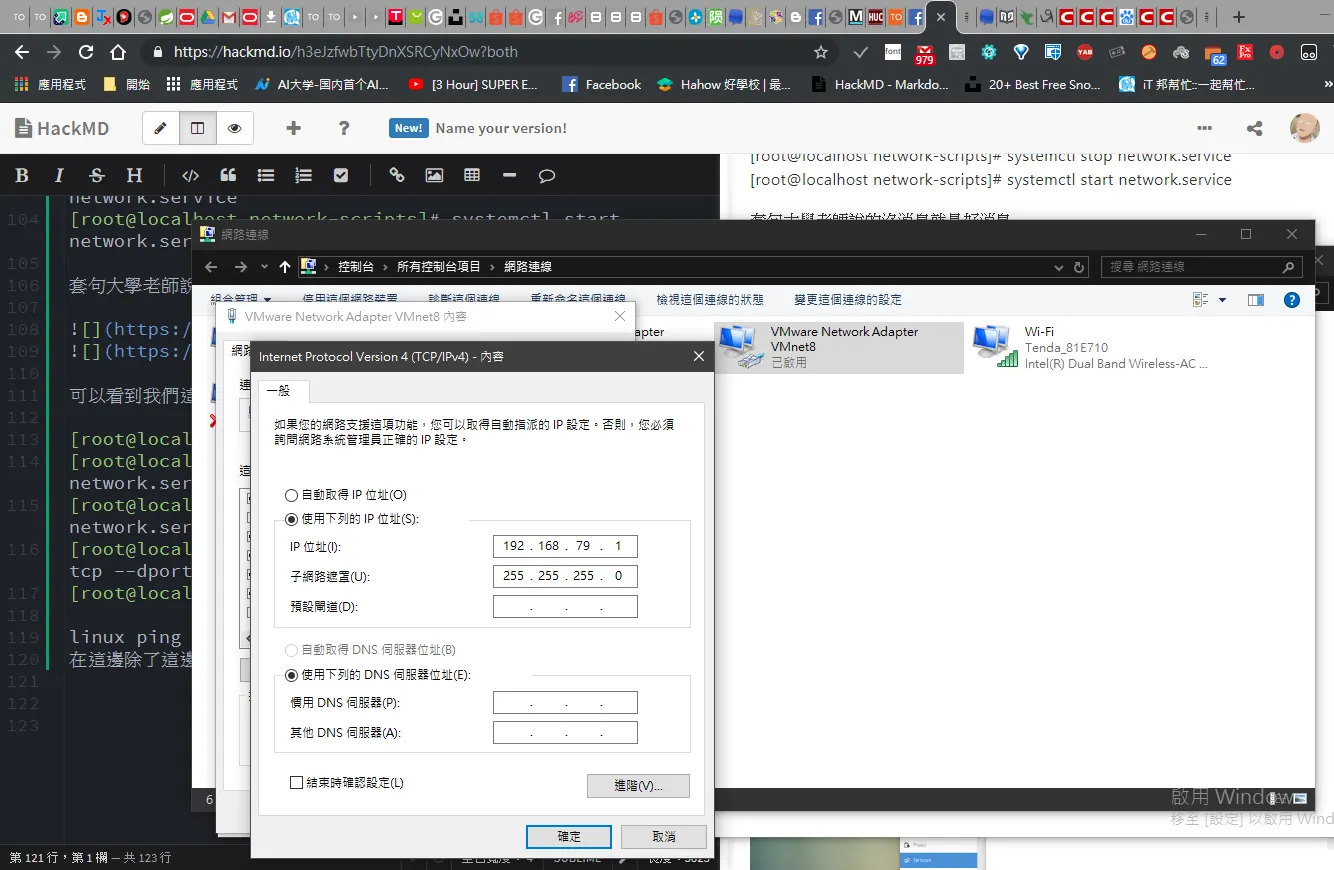
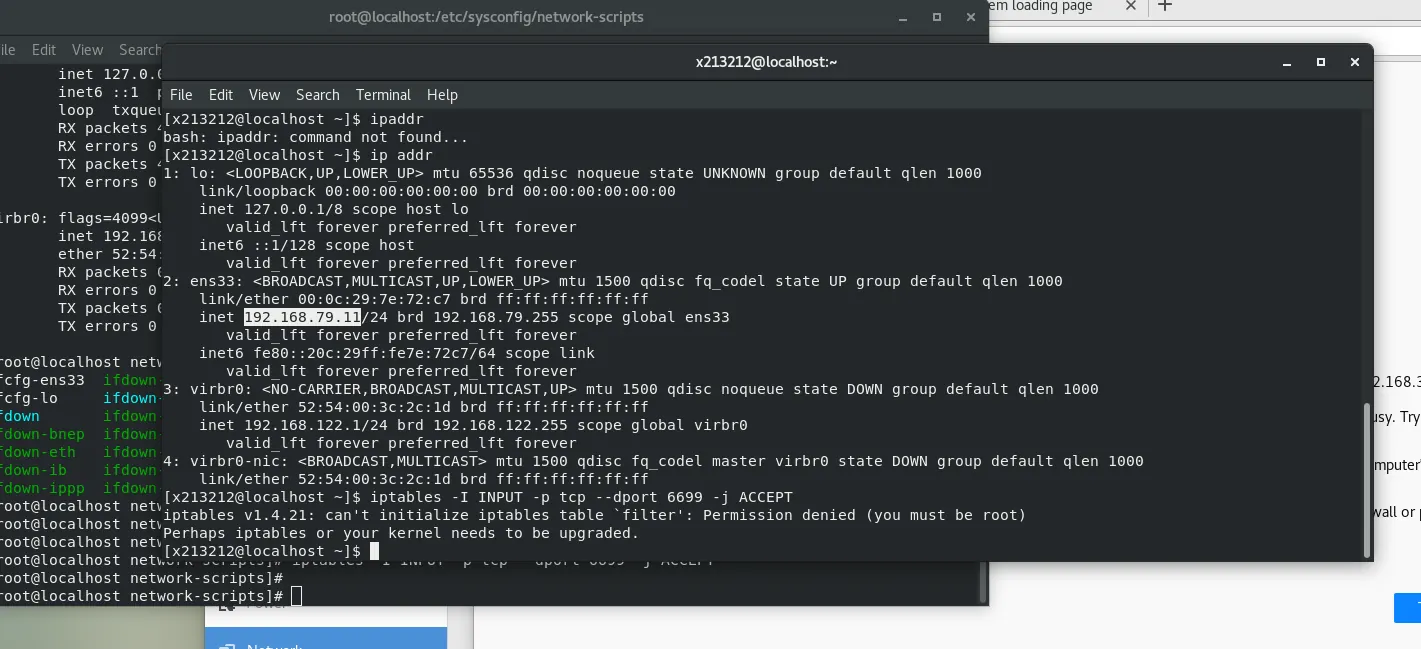
那我的nginx 設置額外端口 怎麼 ping 的通呢,我們只需要添加這行, 不過這是暫時的指令 [root@localhost network-scripts]# iptables -I INPUT -p tcp --dport 6699 -j ACCEPT or 防火牆開啟 方法一:使用firewall 1、运行命令: firewall-cmd --get-active-zones 运行完成之后,可以看到zone名称,如下: 2、执行如下命令命令: firewall-cmd --zone=public --add-port=6379/tcp --permanent 3、重启防火墙,运行命令: firewall-cmd --reload <https://blog.csdn.net/zx110503/article/details/78787483 那麼我們就成功 ping 到我們的 openrestry囉?

ubuntu 篇
有些相關指令可以參考下面的 大致上是沒用到 windows 子系統
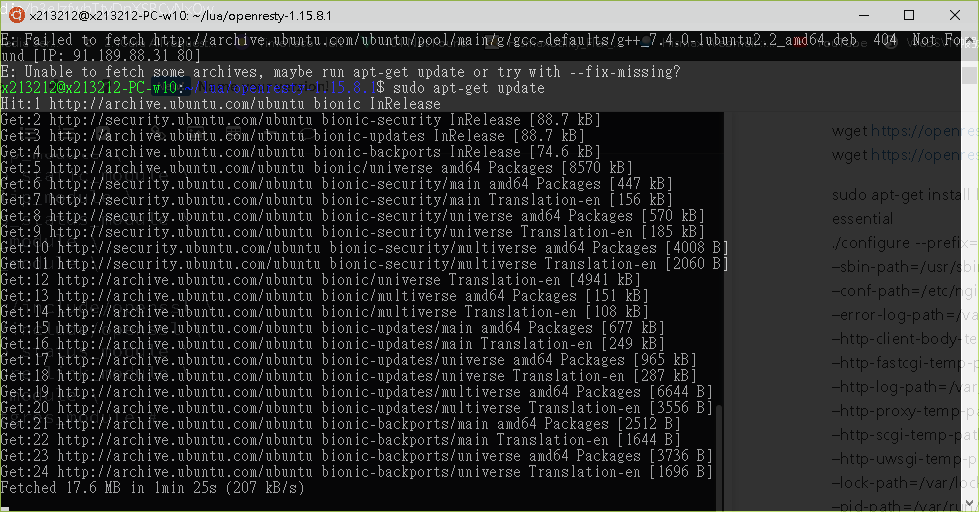
wget https://openresty.org/download/openresty-1.15.8.1.tar.gz wget https://openresty.org/download/openresty-1.15.8.1.tar.gz.asc apt-get install zlib1g-dev apt-get install libgeoip-dev sudo apt-get install libreadline-dev libncurses5-dev libpcre3-dev libssl-dev perl make build-essential ./configure --prefix=/opt/openresty –sbin-path=/usr/sbin/nginx –conf-path=/etc/nginx/nginx.conf –error-log-path=/var/log/nginx/error.log –http-client-body-temp-path=/var/lib/nginx/body –http-fastcgi-temp-path=/var/lib/nginx/fastcgi –http-log-path=/var/log/nginx/access.log –http-proxy-temp-path=/var/lib/nginx/proxy –http-scgi-temp-path=/var/lib/nginx/scgi –http-uwsgi-temp-path=/var/lib/nginx/uwsgi –lock-path=/var/lock/nginx.lock –pid-path=/var/run/nginx.pid –with-luajit –with-http_dav_module –with-http_flv_module –with-http_geoip_module –with-http_gzip_static_module –with-http_realip_module –with-http_stub_status_module –with-http_ssl_module –with-http_sub_module –with-ipv6 –with-sha1=/usr/include/openssl –with-md5=/usr/include/openssl –with-http_stub_status_module –with-http_secure_link_module –with-http_sub_module –with-http_postgres_module lua openresty-test x213212@x213212-PC-w10:~$ nginx -p ~/openresty-test x213212@x213212-PC-w10:~$ ps -ef | grep nginx x213212 75 1 0 15:44 ? 00:00:00 nginx: master process nginx -p /home/x x213212 76 75 0 15:44 ? 00:00:00 nginx: worker process x213212 78 11 0 15:44 tty1 00:00:00 grep --color=auto nginx x213212@x213212-PC-w10:~$ curl http://localhost:6699 -i HTTP/1.1 200 OK Server: openresty/1.15.8.1 Date: Wed, 03 Jul 2019 07:45:10 GMT Content-Type: text/html Transfer-Encoding: chunked Connection: keep-alive HelloWorld x213212@x213212-PC-w10:~$ ps -ef | grep nginx x213212 75 1 0 15:44 ? 00:00:00 nginx: master process nginx -p /home/x x213212 76 75 0 15:44 ? 00:00:00 nginx: worker process x213212 82 11 0 15:46 tty1 00:00:00 grep --color=auto nginx x213212@x213212-PC-w10:~$ kill -p 75 bash: kill: p: invalid signal specification x213212@x213212-PC-w10:~$ kill -9 75 x213212@x213212-PC-w10:~$ ps -ef | grep nginx x213212 76 1 0 15:44 ? 00:00:00 nginx: worker process x213212 84 11 0 15:46 tty1 00:00:00 grep --color=auto nginx x213212@x213212-PC-w10:~$ kill -9 76
Comments